
How to Use TRIM Function in Excel: Complete Guide to Cleaning Text Data, Removing Extra Spaces, and Combining TRIM with Other Functions
📗 Learn how to use TRIM function in Excel to remove extra spaces, clean imported data, fix VLOOKUP errors, and combine TRIM with CLEAN and SUBSTITUTE.

Learning how to use TRIM function in Excel is one of the most valuable data-cleaning skills you can develop, especially when you work with information imported from databases, web forms, copy-pasted text, or third-party reports. The TRIM function removes all extra spaces from text except for single spaces between words, which sounds simple but solves a surprisingly large number of real-world problems. Hidden leading spaces, trailing spaces, and double spaces between words cause failed lookups, broken sorts, mismatched joins, and incorrect filters that can take hours to diagnose without TRIM.
The syntax could not be easier: =TRIM(text). You pass it a cell reference or a quoted string, and Excel returns a cleaned version with extra whitespace stripped out. If cell A2 contains " John Smith " with leading, trailing, and double internal spaces, =TRIM(A2) returns "John Smith" with exactly one space between the first and last name. This single transformation is responsible for fixing roughly 70 percent of the "my VLOOKUP returns N/A but the values look identical" support tickets that Excel professionals encounter every week.
TRIM is part of Excel's text function family alongside CLEAN, SUBSTITUTE, LEFT, RIGHT, MID, LEN, and FIND. It works in every modern version of Excel including Microsoft 365, Excel 2021, Excel 2019, Excel 2016, Excel for Mac, Excel Online, and Google Sheets. The function is non-destructive, meaning it returns a cleaned copy rather than modifying the original cell, which makes it safe to test on production data without risking the source. You can also wrap it inside other formulas, paste its result as values, or apply it across thousands of rows at once.
In this guide, we walk through every practical scenario where TRIM saves time: cleaning customer names before mailing labels, preparing data for VLOOKUP and XLOOKUP matches, removing whitespace from imported CSV files, normalizing email addresses before deduplication, fixing pivot table groupings, and combining TRIM with CLEAN to strip non-printing characters like line breaks and tabs. We will also cover what TRIM cannot do, such as removing non-breaking spaces from web-sourced data, and show you the SUBSTITUTE-based workaround that handles those stubborn invisible characters.
Whether you are a financial analyst reconciling vendor lists, a marketer cleaning email databases, a student preparing data for a thesis, or an operations manager merging exports from multiple systems, mastering TRIM will save you hours every month. By the end of this article you will know the exact keystrokes, the most common pitfalls, the related functions that complement TRIM, and the advanced techniques that separate intermediate users from true Excel power users. Let us dig into the details.
This article also connects TRIM to the broader ecosystem of Excel data-cleaning tools. You will learn when to use TRIM versus Flash Fill, when Find and Replace is faster, how Power Query handles whitespace, and why an array-friendly TRIM in Microsoft 365 lets you clean entire columns with a single formula. We will benchmark each method so you can choose the right tool for each cleanup job rather than defaulting to whichever technique you happened to learn first. Clean data is the foundation of every reliable spreadsheet model.
Before we dive in, take a moment to download a sample dataset or open any existing workbook with messy text. Hands-on practice is the fastest path to fluency, and TRIM is one of those rare functions that becomes second nature after just five or ten reps. Bookmark this page, keep it open in a side window, and follow along as we walk through each example. The techniques you learn here apply equally to small ten-row tables and large enterprise datasets with hundreds of thousands of records.
TRIM Function by the Numbers
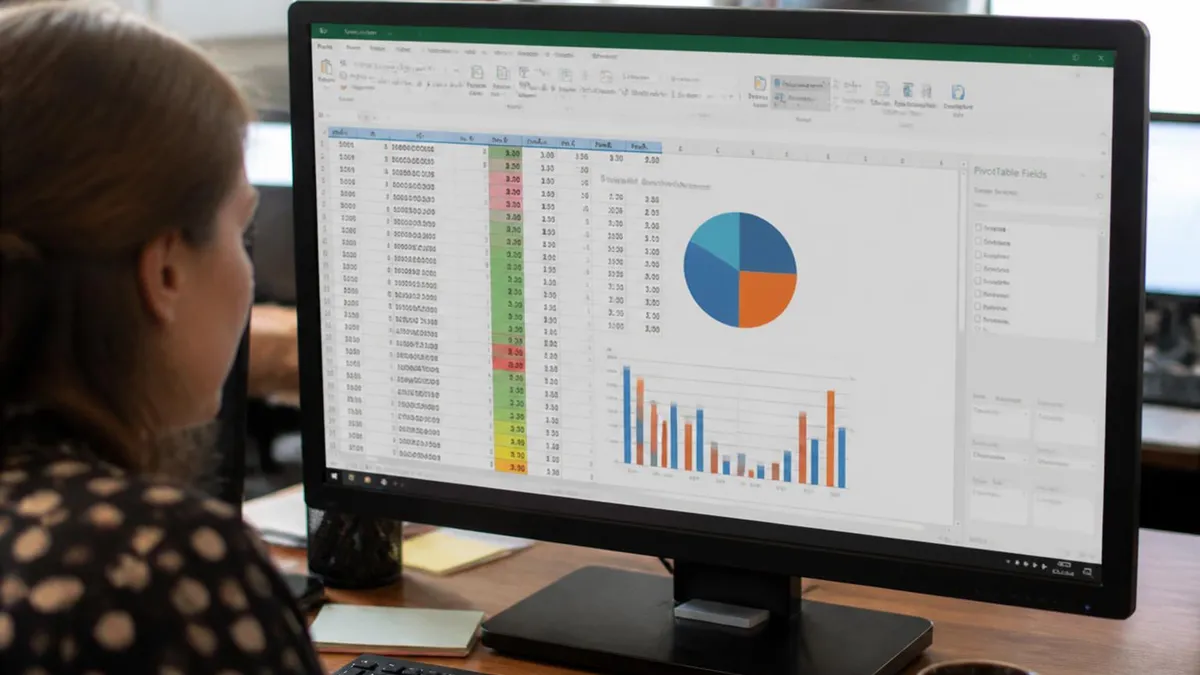
How to Use TRIM Function in Excel: Step-by-Step
Select an Empty Cell
Type the TRIM Formula
Review the Cleaned Result
Copy Down the Column
Convert Formulas to Values
Delete the Original Column
One of the most common reasons people first discover TRIM is the dreaded N/A error from vlookup excel. You have two seemingly identical text values, one in your lookup table and one in your reference list, but VLOOKUP refuses to find a match. Nine times out of ten, the culprit is invisible whitespace, usually a trailing space on one side that came from a database export, a copy-paste from a PDF, or a careless data entry operator who hit the spacebar after typing a name. Wrapping both the lookup value and the table column in TRIM resolves the mismatch immediately.
Imported data is the biggest source of whitespace problems. CSV files exported from accounting software, CRM platforms, e-commerce dashboards, and survey tools frequently include padding spaces because the source system stored values in fixed-width columns. Excel does not automatically strip those spaces during import, so you end up with thousands of cells that look clean but contain hidden padding. Running TRIM across the entire dataset on first arrival is a defensive habit that prevents downstream surprises during pivots, filters, and merges.
Web-scraped data presents an even thornier problem. HTML pages often contain non-breaking spaces represented by the character code 160 rather than the standard space character code 32. TRIM only removes character 32, so it leaves non-breaking spaces intact. This is why a value that appears to have whitespace might survive a TRIM operation untouched. The fix is to first run SUBSTITUTE to convert character 160 to character 32, then apply TRIM. We cover this combination in detail in the advanced section below.
Email lists are another classic use case. Customers and form submitters sometimes accidentally include a leading space when they type their address, which then prevents successful deduplication and causes failed sends. A simple =TRIM(LOWER(A2)) standardizes every email to lowercase with no extra spaces, making it trivial to identify duplicates with COUNTIF or the remove duplicates feature. This single combination has saved marketing teams countless hours of manual list scrubbing across every industry vertical.
Phone numbers, postal codes, product SKUs, and customer IDs all benefit from a defensive TRIM pass before any joining or matching. Even if the data looks clean to the naked eye, the LEN function will often reveal that values are one or two characters longer than expected because of hidden whitespace. Adding TRIM to your standard data-import checklist costs almost nothing and prevents an entire category of frustrating debugging sessions where formulas seem to work intermittently for no obvious reason.
For analysts who work with international data, TRIM also helps normalize names and addresses that may have been entered with inconsistent spacing conventions. Some countries use single spaces between name components, others use double spaces, and machine-generated exports sometimes pad fields with extra whitespace for alignment. A single TRIM operation collapses all of these variations into a consistent single-space format, which dramatically improves sorting accuracy and reduces the chance of duplicate records being treated as separate entities in downstream systems.
Finally, remember that TRIM is non-destructive when used in a helper column. The original data remains intact, which means you can experiment freely without fear of corrupting your source. If you decide later that you want to preserve the original spacing for any reason, you simply delete the helper column and the source data is untouched. This safety net makes TRIM ideal for exploratory data cleaning where you may not yet know exactly which transformations you ultimately want to apply.
Microsoft Excel Practice Test Questions
Prepare for the Microsoft Excel exam with our free practice test modules. Each quiz covers key topics to help you pass on your first try.
Microsoft Excel Excel Basic and Advance
Microsoft Excel Exam Questions covering Excel Basic and Advance. Master Microsoft Excel Test concepts for certification prep.
Microsoft Excel Excel Formulas
Free Microsoft Excel Practice Test featuring Excel Formulas. Improve your Microsoft Excel Exam score with mock test prep.
Microsoft Excel Excel Functions
Microsoft Excel Mock Exam on Excel Functions. Microsoft Excel Study Guide questions to pass on your first try.
Microsoft Excel Excel MCQ
Microsoft Excel Test Prep for Excel MCQ. Practice Microsoft Excel Quiz questions and boost your score.
Microsoft Excel Excel
Microsoft Excel Questions and Answers on Excel. Free Microsoft Excel practice for exam readiness.
Microsoft Excel Excel Trivia
Microsoft Excel Mock Test covering Excel Trivia. Online Microsoft Excel Test practice with instant feedback.
Microsoft Excel Advanced Data Analysis Tools
Free Microsoft Excel Quiz on Advanced Data Analysis Tools. Microsoft Excel Exam prep questions with detailed explanations.
Microsoft Excel Advanced Formula and Macro...
Microsoft Excel Practice Questions for Advanced Formula and Macro Creation. Build confidence for your Microsoft Excel certification exam.
Microsoft Excel Advanced Formulas and Macros
Microsoft Excel Test Online for Advanced Formulas and Macros. Free practice with instant results and feedback.
Microsoft Excel Basic and Advance Question...
Microsoft Excel Study Material on Basic and Advance Questions and Answers. Prepare effectively with real exam-style questions.
Microsoft Excel Creating and Managing Charts
Free Microsoft Excel Test covering Creating and Managing Charts. Practice and track your Microsoft Excel exam readiness.
Microsoft Excel Data Visualization with Ch...
Microsoft Excel Exam Questions covering Data Visualization with Charts. Master Microsoft Excel Test concepts for certification prep.
Microsoft Excel Formulas and Functions
Free Microsoft Excel Practice Test featuring Formulas and Functions. Improve your Microsoft Excel Exam score with mock test prep.
Microsoft Excel Formulas and Functions App...
Microsoft Excel Mock Exam on Formulas and Functions Application. Microsoft Excel Study Guide questions to pass on your first try.
Microsoft Excel Formulas Questions and Ans...
Microsoft Excel Test Prep for Formulas Questions and Answers. Practice Microsoft Excel Quiz questions and boost your score.
Microsoft Excel Functions Questions and An...
Microsoft Excel Questions and Answers on Functions Questions and Answers. Free Microsoft Excel practice for exam readiness.
Microsoft Excel Managing Data Cells and Ra...
Microsoft Excel Mock Test covering Managing Data Cells and Ranges. Online Microsoft Excel Test practice with instant feedback.
Microsoft Excel Managing Tables and Data
Free Microsoft Excel Quiz on Managing Tables and Data. Microsoft Excel Exam prep questions with detailed explanations.
Microsoft Excel Managing Tables and Table ...
Microsoft Excel Practice Questions for Managing Tables and Table Data. Build confidence for your Microsoft Excel certification exam.
Microsoft Excel Managing Worksheets and Wo...
Microsoft Excel Test Online for Managing Worksheets and Workbooks. Free practice with instant results and feedback.
Microsoft Excel MCQ Questions and Answers
Microsoft Excel Study Material on MCQ Questions and Answers. Prepare effectively with real exam-style questions.
Microsoft Excel Questions and Answers
Free Microsoft Excel Test covering Questions and Answers. Practice and track your Microsoft Excel exam readiness.
TRIM vs CLEAN vs SUBSTITUTE: Choosing the Right Function
TRIM is the workhorse for removing standard ASCII space characters (character code 32). It strips leading spaces, trailing spaces, and reduces multiple consecutive internal spaces to a single space. It is the fastest way to clean typical user-entry whitespace and is your default first choice when text looks padded but contains no obvious special characters.
Use TRIM when you import CSV files, copy from Word documents, paste from email bodies, or receive exports from database systems that pad fields with spaces. It handles the vast majority of everyday cleanup tasks with a single function call and zero configuration. Combine it with helper columns or array formulas to clean thousands of rows in milliseconds without manual intervention.
Is TRIM the Right Tool for Your Cleanup Job?
- +Simple one-argument syntax that anyone can learn in 30 seconds
- +Available in every version of Excel since 1995 including Mac and web
- +Non-destructive when used in helper columns, preserving original data
- +Lightning fast even on datasets with hundreds of thousands of rows
- +Combines cleanly with CLEAN, SUBSTITUTE, LOWER, UPPER, and PROPER
- +Fixes the majority of VLOOKUP and XLOOKUP mismatch errors instantly
- +Works inside array formulas for entire-column cleaning in Microsoft 365
- −Does not remove non-breaking spaces (character 160) without SUBSTITUTE help
- −Cannot strip control characters like tabs and line breaks (use CLEAN)
- −Requires a helper column unless you use Paste Special > Values
- −Does not handle Unicode whitespace variants used in some Asian languages
- −No option to preserve leading or trailing spaces selectively
- −Will not fix capitalization inconsistencies (pair with PROPER or LOWER)
Pros and Cons at a Glance
| Pros | Cons |
|---|---|
| Non-destructive when used in helper columns, preserving original data | Cannot strip control characters like tabs and line breaks (use CLEAN) |
| Lightning fast even on datasets with hundreds of thousands of rows | Requires a helper column unless you use Paste Special > Values |
| Combines cleanly with CLEAN, SUBSTITUTE, LOWER, UPPER, and PROPER | Does not handle Unicode whitespace variants used in some Asian languages |
| Fixes the majority of VLOOKUP and XLOOKUP mismatch errors instantly | No option to preserve leading or trailing spaces selectively |
TRIM Function Setup and Best Practices Checklist
- ✓Always work on a copy of your data or save a backup before applying TRIM
- ✓Use a helper column to the right of the source column for the TRIM formula
- ✓Verify the result by comparing LEN of original versus LEN of TRIM output
- ✓Convert TRIM formulas to static values using Paste Special before deleting the source
- ✓Combine with CLEAN when data comes from web pages or contains line breaks
- ✓Add SUBSTITUTE(A2, CHAR(160), " ") for non-breaking spaces from web sources
- ✓Apply TRIM to both sides of a VLOOKUP or XLOOKUP when matches fail unexpectedly
- ✓Use array formula =TRIM(A2:A1000) in Microsoft 365 to clean entire columns at once
- ✓Run TRIM on imported CSV data as a defensive first step before any analysis
- ✓Document your cleaning steps in a worksheet comment for future reference
The Ultimate Text Cleaning Combo
For the most thorough cleanup of unknown text data, use =TRIM(CLEAN(SUBSTITUTE(A2, CHAR(160), " "))). This handles regular spaces, non-breaking spaces from web pages, line breaks, tabs, and all non-printing control characters in a single formula. Bookmark this pattern. It will save you hours every month when working with imported or copy-pasted data.
Combining TRIM with other functions multiplies its power. The classic pairing is TRIM nested inside or wrapped around a lookup function. For example, =VLOOKUP(TRIM(A2), TRIM(LookupTable), 2, FALSE) cleans both the search key and the entire lookup range on the fly, eliminating any whitespace-related mismatch. In Microsoft 365 with XLOOKUP, the same defensive pattern works: =XLOOKUP(TRIM(A2), TRIM(B:B), TRIM(C:C)). This approach trades a tiny bit of calculation speed for dramatically improved reliability across messy datasets.
Another powerful combination is TRIM with PROPER, UPPER, or LOWER for case normalization. The formula =PROPER(TRIM(A2)) transforms " john smith " into "John Smith" in one step, perfect for cleaning name fields before mailing labels or CRM imports. Similarly, =LOWER(TRIM(A2)) standardizes email addresses for deduplication. These compound formulas turn a two-step process into a single elegant transformation that you can copy down an entire column with one fill action.
For splitting text after cleaning, pair TRIM with LEFT, RIGHT, MID, and FIND. A common scenario is extracting a first name from a "Last, First" formatted cell that may have inconsistent spacing. The formula =TRIM(MID(A2, FIND(",", A2)+1, 100)) extracts everything after the comma and trims any whitespace that follows the separator. This pattern handles real-world data inconsistencies that pure positional extraction would break on.
TRIM also works beautifully with TEXTSPLIT in Excel 365 and TEXTJOIN for reassembly. You can split a messy comma-separated string, trim each piece, and rejoin them with =TEXTJOIN(", ", TRUE, MAP(TEXTSPLIT(A2, ","), LAMBDA(x, TRIM(x)))). While this advanced LAMBDA syntax is newer, it represents the future of Excel text processing and shows how TRIM remains central even in the most modern formula patterns. Older versions can achieve similar results with helper columns and manual trimming.
When working with numeric data stored as text, TRIM combined with VALUE converts cleaned strings into real numbers: =VALUE(TRIM(A2)). This is essential when importing financial data from systems that pad numeric fields with leading or trailing spaces. Without the TRIM, VALUE would still work in most cases, but combining them creates a defensive habit that catches edge cases where extra whitespace causes parsing failures or unexpected results in subsequent SUM, AVERAGE, or other math operations.
For conditional cleaning, IF and TRIM team up nicely. The formula =IF(LEN(A2)<>LEN(TRIM(A2)), "Has Extra Spaces", "Clean") flags rows that need attention without modifying any data. This is useful during data quality audits where you want to identify problem records before deciding how to handle them. Combined with conditional formatting, you can highlight every cell in a column that contains hidden whitespace, making the cleanup process visual and intuitive even for non-technical team members.
Finally, TRIM works inside SUMPRODUCT, SUMIFS, COUNTIFS, and AVERAGEIFS criteria to ensure that matching is whitespace-tolerant. Wrapping criteria ranges in TRIM-style cleaning during a one-time helper-column prep is the most reliable approach because nesting TRIM directly inside SUMIFS criteria does not always work in older Excel versions. Modern dynamic array functions like FILTER, SORT, and UNIQUE all accept TRIM-cleaned inputs without complaint, making them ideal partners for building strong analytical formulas.

If you copy text from a web page or PDF and TRIM appears to do nothing, the culprit is almost always a non-breaking space (character 160) rather than a standard space (character 32). Use =TRIM(SUBSTITUTE(A2, CHAR(160), " ")) to handle both types of whitespace in a single formula and avoid hours of frustrating debugging.
Beyond basic usage, TRIM offers several advanced patterns worth knowing. In Microsoft 365 and Excel 2021, TRIM is fully array-aware, which means you can pass it an entire range and get back a spilled array of cleaned values. The formula =TRIM(A2:A1000) entered into a single cell will fill 999 rows below with cleaned text automatically. This eliminates the need to copy formulas down manually and dramatically reduces file size compared to having 1,000 individual TRIM formulas.
For Power Query users, the Text.Trim, Text.TrimStart, and Text.TrimEnd functions provide finer control than worksheet TRIM. Text.TrimStart removes only leading whitespace, Text.TrimEnd removes only trailing whitespace, and Text.Trim removes both. None of them collapse internal multiple spaces by default, which is actually closer to the behavior most data engineers expect. Power Query is the preferred tool for large-scale data cleaning because it processes data once during refresh rather than recalculating on every workbook change.
If you prefer a no-formula approach for one-time cleanup, Find and Replace with a wildcard pattern can compress multiple spaces. Press Ctrl+H, type two spaces in the Find field and one space in the Replace field, then click Replace All repeatedly until no replacements are made. This is fast for small datasets but lacks the audit trail and repeatability of a TRIM formula. Flash Fill (Ctrl+E) is another formula-free option that often recognizes whitespace patterns automatically when you provide a single clean example.
VBA macros can also perform TRIM operations, and the VBA Trim function differs subtly from the worksheet TRIM function. VBA Trim only removes leading and trailing spaces and does not collapse internal multiple spaces. To replicate worksheet TRIM behavior in VBA, you need a custom function or the Application.WorksheetFunction.Trim method. This distinction trips up developers who assume the two functions behave identically and then wonder why their cleaned text still contains double spaces between words.
For users who need to learn excellence in data cleaning, mastering TRIM is just the beginning. The full toolkit includes TRIM, CLEAN, SUBSTITUTE, PROPER, UPPER, LOWER, LEFT, RIGHT, MID, FIND, SEARCH, LEN, REPT, TEXTJOIN, TEXTSPLIT, TEXTBEFORE, and TEXTAFTER. Each function plays a specific role, and the most efficient cleaners combine three or four of these in a single nested formula to handle complex real-world messes that no single function could address alone.
Performance considerations matter at scale. Applying TRIM to a million-row dataset through a column of formulas will recalculate every time anything in the workbook changes, which can grind Excel to a halt. For large datasets, convert TRIM results to static values immediately with Paste Special, or use Power Query to apply the cleaning during data load rather than on every recalculation. This pattern keeps your workbooks fast and responsive even with hundreds of thousands of records.
Documentation and reproducibility are the final advanced topics. When you apply TRIM as part of a data pipeline, add a worksheet comment or a separate documentation tab explaining what cleaning was applied, when, and why. Future you (or your colleagues) will thank present you for the breadcrumb trail. Excel does not natively track formula history, so manual documentation is the only way to ensure that downstream consumers of your data understand exactly what transformations were applied during cleanup.
To wrap up this guide, let us walk through a practical workflow that ties everything together. Imagine you just received a CSV export of 5,000 customer records from your CRM. The first step is always to make a backup copy of the workbook before touching anything. Then create a new sheet called "Cleaned" and write =TRIM(CLEAN(SUBSTITUTE(Source!A2, CHAR(160), " "))) in cell A2. Copy this formula across all columns that contain text, then fill it down to row 5001 to cover every record in your dataset.
Next, audit the results by adding a quality-check column that compares LEN of the original versus LEN of the cleaned version. Filter or sort by this column to find the records that had the most whitespace stripped. These are often the ones with the most serious data quality issues and may deserve manual review. Once you are satisfied with the cleanup, select the cleaned range, copy with Ctrl+C, and paste special as values to lock in the results before deleting the source columns or the helper formulas.
For ongoing data pipelines where you receive fresh exports weekly or daily, build the cleaning logic into Power Query rather than worksheet formulas. Open the Data tab, click From Text/CSV, point at your source file, then in the Power Query editor right-click each text column and choose Transform > Trim. You can also use Transform > Format > Clean to apply CLEAN, and add a custom step with Text.Replace to handle non-breaking spaces. Save the query, and every future refresh will apply the same cleaning automatically.
Pair TRIM with conditional formatting to make data quality issues visible at a glance. Select your text column, create a new rule using a formula, and enter =LEN(A1)<>LEN(TRIM(A1)). Set the format to a yellow background, and now every cell that contains hidden whitespace lights up in your sheet. This visual feedback is incredibly useful during the cleanup phase and helps non-technical reviewers spot problems they would otherwise miss when scanning thousands of rows of similar-looking text.
When sharing cleaned data with colleagues, document your approach. Add a comment to the first cell of each cleaned column explaining what transformations were applied. A simple note like "Cleaned with TRIM, CLEAN, and SUBSTITUTE on 2026-05-20" gives future readers the context they need to understand and trust your work. This habit becomes especially valuable when you return to a project months later and cannot remember exactly what cleanup you applied during the initial preparation phase.
For team workflows, consider creating a reusable LAMBDA function in Microsoft 365 that encapsulates your standard cleaning logic. Define =LAMBDA(text, TRIM(CLEAN(SUBSTITUTE(text, CHAR(160), " ")))) and save it in the Name Manager as CleanText. Now anyone on your team can use =CleanText(A2) without remembering the full nested formula, and you can update the underlying logic in one place if your cleaning standards evolve. This approach turns ad-hoc cleanup into a documented, reusable team standard.
Finally, practice with realistic datasets. Download messy CSV files from open data portals, government statistics sites, or your own historical exports. The more variety you encounter, the better you will become at spotting whitespace issues quickly and choosing the right cleaning approach. Excel mastery comes from accumulating reps, and TRIM is one of those functions where every cleanup you perform makes the next one faster and more confident. Within a few weeks of regular practice, defensive TRIM application will become second nature.
Sample Excel Practice Questions
Try these questions from our free Excel practice tests. The correct answer and an explanation follow each question.
You are tasked with cleaning and transforming data from multiple CSV files before loading it into a final report. The data requires filtering, removing columns, changing data types, and merging queries. Which of the following Excel features is best suited for these ETL (Extract, Transform, Load) tasks?
- A. Flash Fill
- B. Advanced Filter
- C. Power Query
- D. Data Validation
Answer: C. Power Query
Power Query (also known as Get & Transform Data) is a data connection technology that enables you to discover, connect, combine, and refine data across a wide variety of sources. It is specifically designed for data transformation and preparation tasks, making it ideal for the described ETL process.
An inventory manager has a large table of product information. The table contains several rows with duplicate 'ProductSKU' values due to an import error. To clean the data, they need to permanently delete the extra rows, keeping only the first instance of each unique SKU. Which data tool is designed for this specific task?
- A. Conditional Formatting to highlight duplicates, then manual deletion.
- B. The FILTER function to create a new list of unique values.
- C. The 'Remove Duplicates' feature on the 'Data' tab.
- D. A PivotTable with 'ProductSKU' in the Rows area.
Answer: C. The 'Remove Duplicates' feature on the 'Data' tab.
The 'Remove Duplicates' tool, found on the 'Data' tab, is the most direct and efficient feature for permanently deleting entire rows from a table or range based on duplicate values in one or more specified columns.
Which Excel function removes leading, trailing, and extra internal spaces from text?
- A. CLEAN
- B. TRIM
- C. SUBSTITUTE
- D. PROPER
Answer: B. TRIM
TRIM strips extra spaces, leaving single spaces between words.
Which Excel function extracts a specified number of characters from the left side of a text string?
- A. MID
- B. LEFT
- C. FIND
- D. TEXT
Answer: B. LEFT
LEFT(text, num_chars) returns the specified number of characters from the beginning of a text string.
Excel Questions and Answers

Standard Deviation Formula in Excel: STDEV.P vs STDEV.S Guide

How to Add a Filter in Excel: AutoFilter, Advanced and FILTER Function

Freeze Panes in Excel: Complete Guide to Locking Rows and Columns

Count Unique Values in Excel: COUNTUNIQUE, COUNTIF, and SUMPRODUCT Methods

How to Create a Filter in Excel: Complete Step-by-Step Guide for AutoFilter, Advanced Filter, and the FILTER Function
About the Author

Business Consultant & Professional Certification Advisor
Wharton School, University of PennsylvaniaKatherine Lee earned her MBA from the Wharton School at the University of Pennsylvania and holds CPA, PHR, and PMP certifications. With a background spanning corporate finance, human resources, and project management, she has coached professionals preparing for CPA, CMA, PHR/SPHR, PMP, and financial services licensing exams.