
How to Delete a Chart in Excel: Complete Guide to Removing Charts, Graphs, and Embedded Objects
Learn how to delete a chart in Excel using keyboard shortcuts, ribbon commands, VBA, and right-click menus. Step-by-step guide for all Excel versions.

Learning how to delete a chart in Excel is one of those small skills that suddenly matters when a workbook becomes cluttered with outdated visuals, broken data links, or experimental graphs you no longer need. Whether you inherited a messy spreadsheet from a coworker, finished a quarterly report and want to clean up the source file, or simply created the wrong chart type and need to start fresh, removing charts cleanly keeps your workbook lean and your file size manageable. This guide walks through every reliable method available in modern Excel.
Excel charts come in two main flavors that affect how you delete them. Embedded charts sit on a worksheet alongside your data as floating objects, while chart sheets occupy their own dedicated tabs at the bottom of the workbook. Each type requires a slightly different deletion approach, and confusing the two is one of the most common reasons users get stuck. We will cover both, plus pivot charts, sparklines, and SmartArt graphics that sometimes get mistaken for traditional charts.
Beyond the basic Delete key, Excel offers several deletion pathways: keyboard shortcuts, right-click context menus, the ribbon's Selection Pane, VBA macros for bulk removal, and the Go To Special dialog for selecting every object at once. Knowing multiple methods matters because charts behave unpredictably when they are grouped, locked, anchored to filtered rows, or stored inside protected sheets. The right technique depends entirely on the situation.
This tutorial assumes you are working in Excel 2016 or later, including Microsoft 365, Excel 2019, Excel 2021, and Excel for the web. Most steps work identically across versions, though a few menu locations shifted between Excel 2013 and the modern ribbon. Mac users will find Command-key equivalents noted where keyboard shortcuts differ. If you regularly clean up workbooks, you may also want to know how to merge cells in Excel and how to remove duplicates in Excel since those tasks often follow chart cleanup.
We will also tackle the trickier scenarios that frustrate intermediate users: deleting a chart that refuses to be selected, removing only the chart while preserving its source data, deleting multiple charts at once across many sheets, and handling charts that reappear due to refresh links to external data sources. By the end, you should be able to remove any chart, anywhere in any workbook, in under five seconds.
Before diving in, save a backup copy of your workbook. Chart deletion is permanent once you close and save the file, and Ctrl+Z only undoes recent actions within the current session. If your chart represents hours of formatting work or contains embedded data not stored elsewhere, copy it to a backup sheet first. With that safety net in place, let us walk through the fastest and most reliable ways to delete charts in Excel.
One final note: throughout this guide, the word "chart" refers to any Excel chart object, including column charts, line charts, pie charts, scatter plots, combo charts, and the newer chart types like funnel, waterfall, and treemap introduced in recent Excel versions. The deletion methods work identically regardless of chart type, complexity, or data source.
Chart Deletion by the Numbers
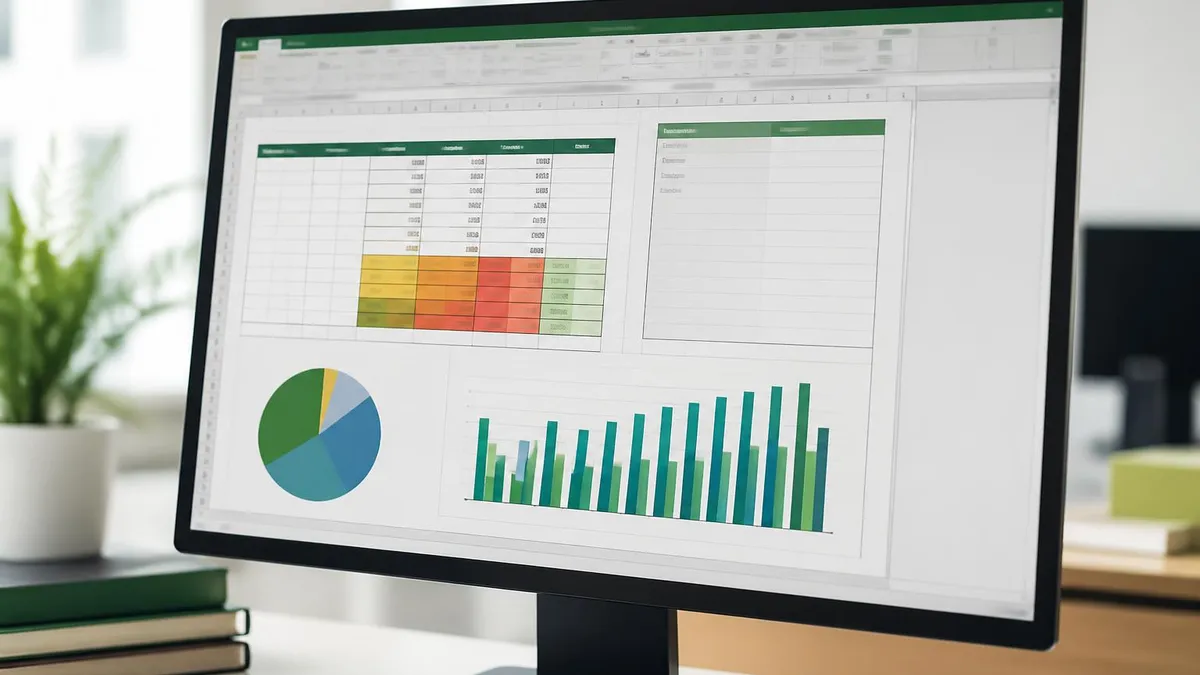
Five-Step Chart Deletion Process
Locate the Chart
Click the Chart Border
Press the Delete Key
Verify Source Data
Save the Workbook
The simplest way to delete an embedded chart in Excel is the click-and-delete method. Click once on the chart so that a thin border with eight small handles appears around its perimeter. Those handles confirm you have selected the chart object itself rather than an internal element like the title, legend, or a single data series. Once the outer frame is visible, press the Delete key on your keyboard and the chart disappears immediately. Your source data on the worksheet remains completely unaffected.
The most common mistake at this stage is double-clicking the chart, which puts Excel into chart edit mode. In edit mode, pressing Delete only removes whatever subelement is currently selected, such as gridlines or a single bar. If you ever press Delete and a chart partially changes instead of disappearing, press Escape once or twice to exit edit mode, then click the outer border again before pressing Delete. This single distinction trips up most new Excel users.
For chart sheets, which appear as separate tabs at the bottom of the workbook with names like "Chart1" by default, the deletion process is different. Right-click the chart sheet tab and choose Delete from the context menu. Excel displays a confirmation dialog warning that the action cannot be undone with Ctrl+Z. Click Delete to confirm. Unlike embedded charts, chart sheet deletion is permanent the moment you confirm, so double-check the tab name before proceeding.
Another reliable method uses the Selection Pane, accessed through Home tab, Find and Select, Selection Pane. This sidebar lists every object on the current worksheet, including charts, shapes, text boxes, and images. Click the chart name in the list, then press Delete. The Selection Pane is invaluable when charts are layered, hidden behind other objects, or have been moved off the visible page area where you cannot click them directly.
If you need to delete several charts on the same sheet quickly, hold Ctrl while clicking each chart border to add them to a multi-selection, then press Delete once to remove all of them simultaneously. Alternatively, press F5 to open Go To, click Special, choose Objects, and click OK. Excel selects every object on the active sheet, including all charts, after which a single Delete press wipes them out. This method also catches floating shapes you may not realize are there.
For complete workbook cleanup, you may want to combine chart deletion with other cleanup tasks like learning how to freeze a row in Excel to lock headers in place, or how to create a drop-down list in Excel for the cells that previously fed the deleted charts. Cleaning visualizations is often the first step in a broader workbook refactor.
One final method worth knowing is cut-and-discard. Select the chart, press Ctrl+X to cut it to the clipboard, then click into an empty cell and press Escape. The chart vanishes because it was cut but never pasted. This approach is useful when the Delete key feels unresponsive or when you have a keyboard issue with that specific key.
Chart Types and Deletion Differences
Embedded charts float on top of worksheet cells as objects anchored to specific rows and columns. They appear in the same sheet as their source data and can be moved, resized, or dragged anywhere within the workbook. Deleting them is straightforward: click the chart border to select the entire object, then press Delete. The chart vanishes while leaving every cell, formula, and value in your worksheet completely intact and unchanged.
The anchor setting matters when you delete rows or columns. If the chart is set to "Move and size with cells" and you delete the rows it covers, the chart may shrink or disappear with them. Right-click the chart, choose Format Chart Area, then Properties to verify or change the anchor behavior before performing bulk deletions on worksheets containing both data and charts.

Should You Delete or Hide a Chart?
- +Deletion permanently reduces workbook file size and loading time
- +Removes outdated visuals that could confuse stakeholders reading reports
- +Cleans up the Selection Pane and simplifies object navigation
- +Frees memory in workbooks with hundreds of legacy charts
- +Eliminates broken links to deleted source data ranges
- +Simplifies macro execution that loops through ChartObjects collections
- +Prevents accidental printing of unwanted charts in shared documents
- −Deletion is irreversible once the file is closed and saved
- −Formatting work like custom colors and labels cannot be recovered
- −May break formulas in other sheets that reference the chart's name
- −Linked PowerPoint or Word documents lose their connected visualizations
- −Recreating a deleted complex chart can take significant time
- −Source data alone may not communicate the same insights as a chart
- −Audit trails for old reports are lost if charts are removed too aggressively
How to Delete a Chart in Excel: Pre-Deletion Checklist
- ✓Save a backup copy of the workbook before deleting any charts
- ✓Identify whether the chart is embedded or on its own chart sheet
- ✓Check if the chart is referenced by formulas, macros, or external files
- ✓Confirm the source data is preserved elsewhere if you need it later
- ✓Note any custom formatting you may want to recreate in a new chart
- ✓Test that Ctrl+Z works by deleting one chart and undoing the action
- ✓Use Selection Pane to inventory all objects on the worksheet
- ✓Close any PowerPoint or Word files linked to the chart before deletion
- ✓Disable AutoSave temporarily so accidental deletes can be reversed
- ✓Verify with stakeholders that the chart is truly obsolete before removing
Use Go To Special to Wipe Every Chart at Once
Press F5, click Special, choose Objects, and click OK. Excel instantly selects every chart, shape, and image on the active sheet. A single press of Delete removes them all. This trick saves hours when cleaning legacy workbooks loaded with experimental visualizations from previous analyses.
For power users managing workbooks with dozens or hundreds of charts, VBA offers the fastest cleanup path. Press Alt+F11 to open the Visual Basic Editor, insert a new module, and paste a short subroutine that loops through every ChartObject on the active sheet and deletes each one. The basic syntax is straightforward: For Each cht In ActiveSheet.ChartObjects, then cht.Delete, then Next cht. Running this macro removes every embedded chart on the current worksheet in under a second, regardless of how many exist.
To delete every chart across an entire workbook, expand the macro with a nested loop that iterates through each worksheet first, then through each chart on that sheet. The pattern looks like For Each ws In ActiveWorkbook.Worksheets, then For Each cht In ws.ChartObjects, then cht.Delete, then Next cht, then Next ws. This single macro can clean a 50-sheet workbook in seconds, which would take an hour to do manually by clicking and pressing Delete on each chart individually.
Chart sheets require a separate loop because they are not ChartObjects but actual Chart objects at the workbook level. The syntax is For Each ch In ActiveWorkbook.Charts, then ch.Delete, then Next ch. Excel suppresses the confirmation dialog when deletion happens through VBA, which speeds up bulk operations but also means you cannot recover deleted chart sheets afterward. Always test macros on a copy of the workbook before running them against your production file.
The Immediate Window in the VB Editor provides an even faster ad-hoc method. Press Ctrl+G to open it, then type ActiveSheet.ChartObjects.Delete and press Enter. Every chart on the active sheet disappears instantly without writing a full macro. For chart sheets, type ActiveWorkbook.Charts.Delete. Use these one-liners when you need quick cleanup without saving a macro permanently in the file.
For more selective deletion, VBA can filter charts by name, position, size, or chart type before deleting. For example, you could delete only pie charts while preserving column charts by checking each chart's ChartType property against the constant xlPie. This conditional approach is invaluable when migrating reports and you want to keep some visualizations while removing others. The full Excel object model exposes every chart property to your code.
Macros are particularly useful when combined with workbook events. You could add code to the Workbook_BeforeSave event that automatically deletes specific old charts before saving, ensuring your file never grows beyond a target size. However, automatic deletion can be risky in shared workbooks, so always document any event-driven cleanup logic clearly and require explicit user confirmation through a MsgBox prompt before destroying objects.
Finally, remember that VBA deletions bypass the Undo stack entirely. Once a macro runs, Ctrl+Z cannot recover the deleted charts. Some users build a safety mechanism into their cleanup macros by first copying every chart to a backup hidden worksheet, then deleting the originals. If a chart turns out to have been needed, it can be cut from the backup sheet and pasted back to its original location.

Unlike embedded chart deletion, removing a chart sheet by right-clicking its tab triggers a permanent action that Ctrl+Z cannot reverse. Once you confirm the deletion dialog, the chart sheet is gone from the current session even if you have not yet saved the file. Always verify the tab name carefully before clicking Delete in the warning prompt.
Some charts resist deletion and require special handling. The most common cause is sheet protection. If you click a chart and pressing Delete does nothing, check whether the worksheet is protected by going to Review, Unprotect Sheet. You may need a password if the original creator set one. Once unprotected, the chart deletes normally. Remember to reapply protection afterward if the sheet needs to stay locked for other users.
Another stubborn case is charts placed inside grouped objects. If a chart was grouped with shapes or text boxes using Ctrl+G or Format, Group, clicking once selects the entire group instead of the chart alone. Right-click the group, choose Group, then Ungroup, and you can now select and delete the chart individually. Alternatively, deleting the entire group with the Delete key removes the chart along with everything else in the group.
Charts inside protected views, particularly in files downloaded from email or the web, may not respond to deletion until you click Enable Editing in the yellow banner at the top of the workbook. Until editing is enabled, the file is essentially read-only and no objects can be removed. This safety feature catches many users off guard when they cannot figure out why Delete does nothing on a chart they clearly selected.
If you accidentally deleted a chart and need it back, the recovery path depends on timing. Within the same session, Ctrl+Z restores the chart along with any previous actions you also undo. After saving, you can sometimes recover the chart from Excel's AutoRecover folder, accessible through File, Info, Manage Workbook, Recover Unsaved Workbooks. If neither option works, OneDrive and SharePoint users can browse Version History to restore an earlier copy of the file containing the deleted chart.
To prevent accidental chart deletion in important workbooks, lock charts individually. Right-click the chart, choose Format Chart Area, expand the Properties section, and check Locked. Then protect the worksheet via Review, Protect Sheet. Once protected, users cannot delete or modify the chart unless they unprotect the sheet first. This is the standard approach for dashboards distributed to many viewers who should not be able to alter the visualizations.
If you work with complex visualization workflows, you might also benefit from learning how to add a filter in Excel since filtering data often changes which chart elements display. Combining chart management skills with filtering and conditional formatting gives you full control over how spreadsheet data is visualized and presented to different audiences.
One last troubleshooting tip: if charts seem to reappear after deletion, check whether the workbook contains data refresh links from Power Query or external sources that regenerate charts on open. Disable these refresh-on-open settings through Data, Queries and Connections, then right-click the relevant query and uncheck Refresh data when opening the file.
Practical chart management goes beyond simply pressing Delete. Build a habit of reviewing every workbook you receive for orphaned charts that were created during exploratory analysis and never cleaned up. Files routinely accumulate visualizations that no one uses but everyone is afraid to remove. A monthly cleanup pass through shared team workbooks typically reduces file sizes by 30 to 50 percent and noticeably improves open and save times, especially for files stored on slower network drives or cloud services.
When deleting charts from templates that other people will use, replace removed visualizations with placeholder text or instructions that explain where new charts should go. An empty workbook with no guidance often confuses downstream users who do not know what visual was supposed to be there. A simple text box reading "Insert quarterly revenue chart here using data from the Sales sheet" preserves intent without committing to a specific chart that may become outdated.
For audit trails, consider archiving deleted charts to a hidden backup sheet rather than removing them entirely. Create a sheet named "Archive" and hide it via right-click, Hide. Cut charts you might want later from their original location and paste them into the Archive sheet. This approach satisfies both the cleanup goal of removing charts from working views and the safety goal of preserving them in case stakeholders later ask about historical visualizations.
Document your deletion decisions in a change log within the workbook itself. Add a sheet called "Change Log" and record what was deleted, when, by whom, and why. This is especially valuable in regulated industries where audit requirements demand a clear paper trail for any modification to financial or operational reports. The log takes only a few seconds per change but prevents many awkward conversations months later when someone asks where a chart went.
Keep keyboard shortcuts in muscle memory because the speed difference adds up. Single-click the chart, press Delete. That is two actions, well under two seconds. Compare that to right-clicking, scrolling to find the delete option, clicking it, and dismissing any confirmation dialog. Across a workbook with 40 charts, the keyboard method saves several minutes. Multiply that by the number of workbooks you clean each month and the time savings become significant.
Finally, treat chart deletion as part of broader workbook hygiene. Schedule quarterly reviews of all shared spreadsheets. During each review, delete obsolete charts, remove unused worksheets, clear named ranges that no longer point to valid data, and consolidate duplicate calculations. Workbooks that receive regular hygiene attention remain fast, reliable, and trustworthy. Workbooks that go years without cleanup become unwieldy artifacts that nobody fully understands and everyone hesitates to touch.
Whether you are removing a single test chart or stripping hundreds of legacy visualizations from a corporate model, the methods covered here handle every scenario. Master the click-and-delete basics first, then layer on Selection Pane usage, Go To Special selection, and VBA for bulk operations. Once these techniques are second nature, no chart anywhere in any workbook will be able to resist your cleanup efforts for long.
Excel Questions and Answers
About the Author
Attorney & Bar Exam Preparation Specialist
Yale Law SchoolJames R. Hargrove is a practicing attorney and legal educator with a Juris Doctor from Yale Law School and an LLM in Constitutional Law. With over a decade of experience coaching bar exam candidates across multiple jurisdictions, he specializes in MBE strategy, state-specific essay preparation, and multistate performance test techniques.