
How to Calculate the Mean in Excel: Complete Guide to AVERAGE, AVERAGEIF, and AVERAGEIFS Functions
🗨️ Learn how do you calculate the mean in Excel using AVERAGE, AVERAGEIF, and AVERAGEIFS. Step-by-step formulas, examples, and troubleshooting tips.

If you have ever wondered how do you calculate the mean in Excel, the answer is refreshingly simple yet surprisingly powerful once you dig into the details. The mean, more commonly called the average, is the sum of a set of numbers divided by how many numbers there are. Excel handles this calculation through a small family of functions including AVERAGE, AVERAGEIF, AVERAGEIFS, AVERAGEA, and TRIMMEAN, each suited to a different scenario you will encounter in real spreadsheets.
The most basic approach uses the AVERAGE function, written as =AVERAGE(A1:A10), which returns the arithmetic mean of every numeric value in the chosen range. Excel automatically ignores blank cells, text labels, and logical values when computing the result, which prevents most common errors. This behavior matters because many beginners assume blank cells are treated as zero, which would dramatically pull the mean downward and produce misleading reports for managers, teachers, or analysts.
Beyond the basic average, Excel offers conditional averaging through AVERAGEIF and AVERAGEIFS. These functions let you compute the mean only for rows that meet specific criteria, such as the average sales figure for the West region or the average score for students who completed every assignment. Combined with named ranges and structured table references, conditional averages become the backbone of dashboards, KPI summaries, and academic gradebooks built inside Excel workbooks every day.
You can also calculate the mean visually using the Excel status bar. Select any range of numeric cells and look at the bottom-right corner of the application window. Excel displays the average, count, and sum automatically without you typing a single formula. This trick is invaluable for quick sanity checks during data entry or when you are presenting data live in a meeting and someone asks for a fast number you did not prepare in advance.
For datasets with extreme outliers, the simple mean can mislead. A single very large or very small value can skew the result so far that it no longer represents the typical case. In those situations, Excel provides the TRIMMEAN function, which trims a specified percentage of values from the top and bottom before averaging the rest. This produces a more strong central measurement that statisticians often prefer when working with messy real-world data.
Throughout this guide we will walk through every method step by step, show you the exact syntax, demonstrate worked examples, and highlight the pitfalls that trip up new users. By the end you will know not just how to type =AVERAGE() but also when to choose one function over another, how to handle errors gracefully, and how to combine the mean with filters, pivot tables, and conditional formatting to build professional-looking analyses inside Excel.
Excel Mean Calculation by the Numbers

How to Calculate the Mean in Excel: Step-by-Step
Select Your Data Range
Choose an Empty Cell
Type the AVERAGE Formula
Verify with the Status Bar
Format the Result
Document Your Formula
The AVERAGE function is the workhorse of mean calculation in Excel and the first tool you should reach for. Its syntax is straightforward: =AVERAGE(number1, [number2], ...). You can pass up to 255 separate arguments, each of which can be a single cell, a range, a named range, a table column reference, or even a hard-coded value. Excel evaluates every argument, collects the numeric entries, sums them, and divides by the count of those numeric values to produce the arithmetic mean.
Suppose you have monthly sales figures in cells B2 through B13 representing January through December. Typing =AVERAGE(B2:B13) into cell B14 returns the average monthly sales for the year. If December is still blank because the year is not over, Excel automatically ignores that empty cell and divides by eleven instead of twelve, producing the correct year-to-date average without any extra logic on your part. This silent intelligence is one of Excel's most useful behaviors.
You can also combine ranges that are not next to each other. For example, =AVERAGE(B2:B4, B7:B9, B11) computes a single mean across three discontinuous chunks of data. This is helpful when you want to exclude certain rows such as holiday months, internal training periods, or any outlier you have intentionally identified. Wrapping the formula across multiple selections keeps the original data intact while still producing a focused, analytically meaningful average.
If your data lives inside an Excel Table (created with Ctrl+T), you can reference columns by name. A formula like =AVERAGE(Sales[Revenue]) automatically expands as new rows are added to the table, so dashboards stay accurate without manual maintenance. Structured references also make your formulas self-documenting, which dramatically reduces the chance of someone breaking your workbook by inserting a row above your data range or sorting in a way that misaligns adjacent calculations.
One critical detail to remember: AVERAGE ignores text and logical values inside cells, but if you pass a logical value directly as an argument, Excel will count it. For example, =AVERAGE(10, 20, TRUE) returns 10.333 because TRUE is evaluated as 1. If you want logical values and text representations of numbers to be included as zero, use AVERAGEA instead. Understanding this nuance protects you from surprising results when your data contains mixed types.
For weighted averages, AVERAGE alone is not enough. Combine SUMPRODUCT and SUM in a formula such as =SUMPRODUCT(values, weights)/SUM(weights). This is the standard approach for grade calculations where exams carry more weight than homework, or for portfolio returns where each asset contributes proportionally to total holdings. The traditional AVERAGE simply treats every value equally, which is rarely what you want in financial or academic settings with deliberate weighting schemes.
Finally, remember that the AVERAGE function returns a #DIV/0! error if every cell in the range is empty or contains only text. Wrap your formula in IFERROR like =IFERROR(AVERAGE(B2:B13), 0) to display a clean zero or a custom message instead. This small precaution keeps reports presentable when data is still being collected and prevents jarring red error indicators in shared dashboards used by executives or clients.
Microsoft Excel Practice Test Questions
Prepare for the Microsoft Excel exam with our free practice test modules. Each quiz covers key topics to help you pass on your first try.
Microsoft Excel Excel Basic and Advance
Microsoft Excel Exam Questions covering Excel Basic and Advance. Master Microsoft Excel Test concepts for certification prep.
Microsoft Excel Excel Formulas
Free Microsoft Excel Practice Test featuring Excel Formulas. Improve your Microsoft Excel Exam score with mock test prep.
Microsoft Excel Excel Functions
Microsoft Excel Mock Exam on Excel Functions. Microsoft Excel Study Guide questions to pass on your first try.
Microsoft Excel Excel MCQ
Microsoft Excel Test Prep for Excel MCQ. Practice Microsoft Excel Quiz questions and boost your score.
Microsoft Excel Excel
Microsoft Excel Questions and Answers on Excel. Free Microsoft Excel practice for exam readiness.
Microsoft Excel Excel Trivia
Microsoft Excel Mock Test covering Excel Trivia. Online Microsoft Excel Test practice with instant feedback.
Microsoft Excel Advanced Data Analysis Tools
Free Microsoft Excel Quiz on Advanced Data Analysis Tools. Microsoft Excel Exam prep questions with detailed explanations.
Microsoft Excel Advanced Formula and Macro...
Microsoft Excel Practice Questions for Advanced Formula and Macro Creation. Build confidence for your Microsoft Excel certification exam.
Microsoft Excel Advanced Formulas and Macros
Microsoft Excel Test Online for Advanced Formulas and Macros. Free practice with instant results and feedback.
Microsoft Excel Basic and Advance Question...
Microsoft Excel Study Material on Basic and Advance Questions and Answers. Prepare effectively with real exam-style questions.
Microsoft Excel Creating and Managing Charts
Free Microsoft Excel Test covering Creating and Managing Charts. Practice and track your Microsoft Excel exam readiness.
Microsoft Excel Data Visualization with Ch...
Microsoft Excel Exam Questions covering Data Visualization with Charts. Master Microsoft Excel Test concepts for certification prep.
Microsoft Excel Formulas and Functions
Free Microsoft Excel Practice Test featuring Formulas and Functions. Improve your Microsoft Excel Exam score with mock test prep.
Microsoft Excel Formulas and Functions App...
Microsoft Excel Mock Exam on Formulas and Functions Application. Microsoft Excel Study Guide questions to pass on your first try.
Microsoft Excel Formulas Questions and Ans...
Microsoft Excel Test Prep for Formulas Questions and Answers. Practice Microsoft Excel Quiz questions and boost your score.
Microsoft Excel Functions Questions and An...
Microsoft Excel Questions and Answers on Functions Questions and Answers. Free Microsoft Excel practice for exam readiness.
Microsoft Excel Managing Data Cells and Ra...
Microsoft Excel Mock Test covering Managing Data Cells and Ranges. Online Microsoft Excel Test practice with instant feedback.
Microsoft Excel Managing Tables and Data
Free Microsoft Excel Quiz on Managing Tables and Data. Microsoft Excel Exam prep questions with detailed explanations.
Microsoft Excel Managing Tables and Table ...
Microsoft Excel Practice Questions for Managing Tables and Table Data. Build confidence for your Microsoft Excel certification exam.
Microsoft Excel Managing Worksheets and Wo...
Microsoft Excel Test Online for Managing Worksheets and Workbooks. Free practice with instant results and feedback.
Microsoft Excel MCQ Questions and Answers
Microsoft Excel Study Material on MCQ Questions and Answers. Prepare effectively with real exam-style questions.
Microsoft Excel Questions and Answers
Free Microsoft Excel Test covering Questions and Answers. Practice and track your Microsoft Excel exam readiness.
Three Ways to Calculate the Mean (Like VLOOKUP Excel Variants)
The basic AVERAGE function calculates the arithmetic mean of all numeric cells in a range. Syntax: =AVERAGE(A1:A100). It automatically ignores blanks, text, and logical values stored inside cells. Use this when you want a straightforward mean with no filters. It is the fastest method and works on every version of Excel from 2007 onward, as well as Excel for the web and Excel for Mac.
This function is ideal for clean datasets where every value is relevant to your analysis. Examples include average daily temperature, average response time on a website, or the mean test score for an entire class. Because AVERAGE handles up to 255 arguments and ranges of over one million rows, it scales easily from quick personal calculations to enterprise-grade reports.
AVERAGE Function vs Manual Mean Calculation
- +Automatically ignores blank cells preventing incorrect zero-weighting
- +Updates instantly when source data changes anywhere in the range
- +Handles up to 255 arguments and millions of rows without slowdown
- +Works with named ranges and structured table references for clarity
- +Integrates with conditional formatting to highlight above-average values
- +Supports non-contiguous ranges using comma-separated selections
- +Returns a clear DIV/0 error so you immediately spot empty datasets
- −Treats logical values inside cells differently than logical arguments
- −Does not weight values automatically requiring SUMPRODUCT for weighting
- −Outliers can dramatically skew the result without warning
- −Returns DIV/0 error if all referenced cells are blank or text
- −Cannot handle text representations of numbers as numeric input
- −Requires AVERAGEIFS for filtering on more than one condition simultaneously
Pros and Cons at a Glance
| Pros | Cons |
|---|---|
| Automatically ignores blank cells preventing incorrect zero-weighting | Treats logical values inside cells differently than logical arguments |
| Updates instantly when source data changes anywhere in the range | Does not weight values automatically requiring SUMPRODUCT for weighting |
| Works with named ranges and structured table references for clarity | Outliers can dramatically skew the result without warning |
| Integrates with conditional formatting to highlight above-average values | Cannot handle text representations of numbers as numeric input |
| Supports non-contiguous ranges using comma-separated selections | Requires AVERAGEIFS for filtering on more than one condition simultaneously |

Mean Calculation Checklist: Get the Right Answer Every Time
- ✓Confirm your data range contains only numeric values you want averaged
- ✓Remove or exclude header rows that contain text labels before selecting
- ✓Decide whether blanks should count as zero or be ignored entirely
- ✓Check for hidden outliers using sort or conditional formatting first
- ✓Use AVERAGE for simple means and AVERAGEIF when filters are needed
- ✓Wrap the formula in IFERROR to handle empty datasets gracefully
- ✓Reference structured table columns instead of fixed cell ranges when possible
- ✓Format the result with appropriate decimal places for your audience
- ✓Add a clear label cell describing exactly what the mean represents
- ✓Verify the result against the Excel status bar for a quick sanity check
See the mean without writing a formula
Select any range of numeric cells and look at the bottom-right corner of the Excel window. The status bar instantly displays Average, Count, and Sum for the selection. Right-click the status bar to add Min, Max, and Numerical Count too. This trick is invaluable for quick checks during meetings or before deciding whether a more formal AVERAGE formula is needed in your worksheet.
Even though calculating the mean in Excel looks simple, several common errors trip up new users and create misleading reports. The most frequent mistake is including header rows in the range. If your column header is the text word Revenue and you write =AVERAGE(B1:B13) instead of =AVERAGE(B2:B13), Excel will silently ignore the text and still return the correct mean — but only because AVERAGE excludes non-numeric values. The trap is that if a header contains a number like 2024, Excel will treat it as data and contaminate your result.
The second classic error is the #DIV/0! error, which appears when every cell in the referenced range is empty or contains only text. This often happens at the start of a new month before any data has been entered. Wrap your formula in IFERROR like =IFERROR(AVERAGE(B2:B13), "No data yet") to produce a friendly placeholder message instead of an alarming red error code that distracts readers and looks unprofessional in printed reports or shared dashboards.
A subtler issue arises when numbers are stored as text. Data imported from web pages, PDFs, or legacy systems often arrives with numbers wrapped in quotation marks or padded with invisible characters. AVERAGE will silently skip these cells, producing a mean based on only the truly numeric entries. You can detect this by selecting the range and watching the status bar count match the number of expected rows. If it does not, use VALUE() or Text-to-Columns to convert the strings into real numbers.
Outliers are the most dangerous source of misleading averages because they produce no error at all. A single extreme value can pull the mean far from the typical case. For example, ten salaries of $50,000 and one executive at $500,000 produce an average of $90,909 — a number that represents nobody in the room. Use TRIMMEAN(range, 0.1) to discard the top and bottom 10 percent before averaging, or consider reporting the median with the MEDIAN function alongside the mean.
Circular reference errors occur when your AVERAGE formula accidentally includes its own cell in the range. If cell B14 contains =AVERAGE(B2:B14), Excel cannot resolve the calculation because the answer depends on itself. Excel will display a warning and either leave the cell blank or show zero. Always place the formula outside the range you are averaging, or use absolute references like $B$2:$B$13 to lock the boundaries when copying formulas across many columns or sheets.
Finally, watch out for hidden rows. If you filter a list and then average the visible cells, AVERAGE still includes the hidden rows in its calculation because it sees the entire range. To average only visible cells, use SUBTOTAL with function number 1, written as =SUBTOTAL(1, B2:B100). The AGGREGATE function provides even more control, letting you ignore errors, hidden rows, and nested subtotals in one comprehensive formula that is especially useful for large filtered datasets.
Understanding these pitfalls turns Excel from a black box into a transparent tool you can trust. Every analyst, teacher, and accountant who has spent more than a few months in Excel has been burned by at least one of these issues. Knowing they exist — and how to defend against them — separates a casual user from someone whose spreadsheets are trusted by senior leaders, clients, and auditors. Spend a few extra seconds checking your work and the payoff in credibility is enormous.
The standard AVERAGE function includes hidden and filtered rows in its calculation, which can produce misleading results in dashboards. If you only want to average visible cells after applying a filter, use =SUBTOTAL(1, range) or =AGGREGATE(1, 5, range) instead. The 5 in AGGREGATE tells Excel to ignore hidden rows. This is a common source of confusion when sharing filtered reports.
Once you have mastered the basic AVERAGE function and its conditional siblings, you can layer in more sophisticated techniques that improve your spreadsheets from competent to genuinely impressive. The first advanced move is the weighted average, which respects that not all values contribute equally to the final result. The classic formula =SUMPRODUCT(values, weights)/SUM(weights) returns a weighted mean in a single line. Use this for grade books where exams matter more than quizzes, or for inventory valuations where unit costs vary.
The TRIMMEAN function is invaluable for noisy data. Its syntax =TRIMMEAN(range, percent) discards the top and bottom percentage of values before computing the mean. Olympic judging uses a similar idea: throw out the highest and lowest scores to avoid bias. In Excel, =TRIMMEAN(B2:B100, 0.2) ignores the top 10 percent and bottom 10 percent of values, producing a more strong central measure that resists outliers without requiring you to manually identify and remove them.
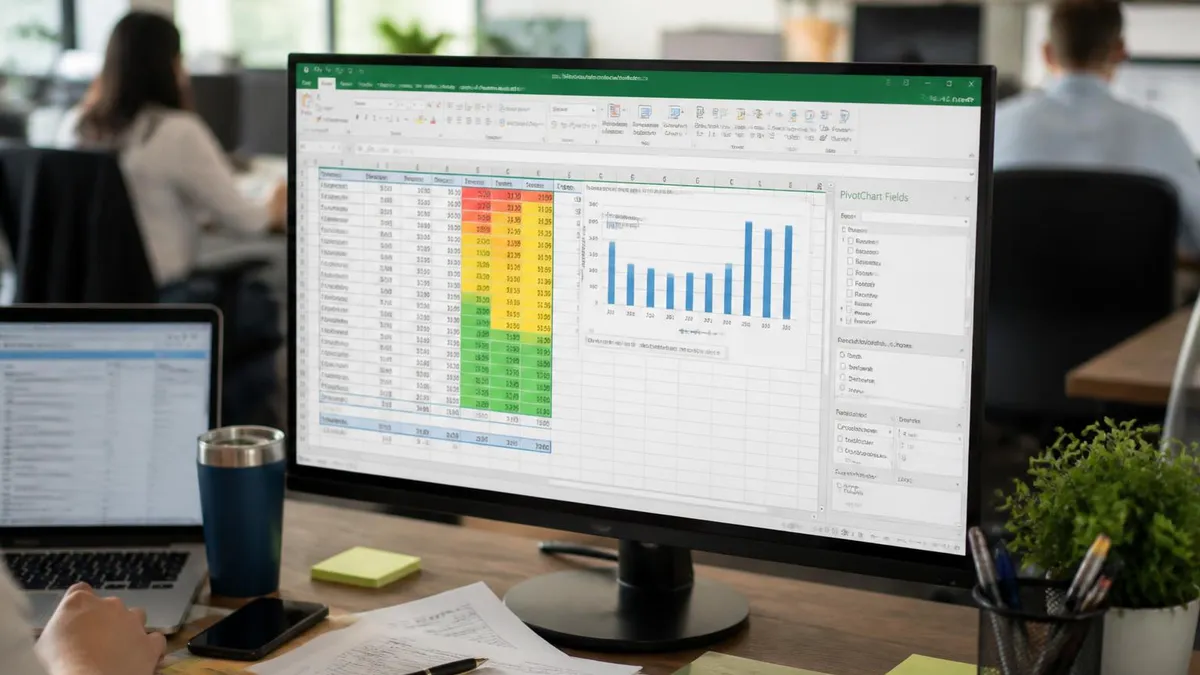
Pair the mean with conditional formatting to instantly visualize performance. Select your data range, choose Home then Conditional Formatting, and create a rule for cells greater than =AVERAGE($B$2:$B$100). Color those cells green and below-average cells red. Now anyone glancing at the worksheet can see which rows beat the mean without reading a single number. This visual layer transforms raw data into actionable insight, particularly when paired with sparklines or icon sets.
For rolling averages — a staple of financial and sales analysis — combine AVERAGE with OFFSET or INDEX. A formula like =AVERAGE(OFFSET(B2, 0, 0, 7, 1)) in row 8 returns the seven-day rolling mean ending at row 8. Copy this formula down the column and you have a smooth trend line that reduces day-to-day noise. Modern Excel users with Microsoft 365 can use the new LAMBDA and MAP functions for even cleaner rolling calculations across dynamic arrays.
Pivot tables provide another powerful path to the mean. Drag a numeric field into the Values area, click the small arrow next to Sum of, and choose Value Field Settings then Average. The pivot table now displays the mean automatically broken down by every row and column field you add. This approach scales effortlessly from a handful of records to millions of rows, especially when combined with Power Pivot and the DAX function AVERAGEX for advanced row-by-row calculations.
Finally, consider the median and mode alongside the mean. The MEDIAN function returns the middle value when your data is sorted, which resists outliers far better than the mean. The MODE.SNGL function returns the most frequently occurring value. Reporting all three measures of central tendency gives readers a richer picture than the mean alone. In skewed distributions like household income or website session durations, the median often tells a more accurate story than the average — a lesson every data analyst learns.
Document your formulas with comments and named ranges so colleagues understand your intent. Press Shift+F2 to add a cell comment explaining the logic, or use Formulas then Name Manager to give meaningful names like AnnualRevenue to your ranges. A formula reading =AVERAGE(AnnualRevenue) is instantly understandable, while =AVERAGE(B2:B13) requires the reader to investigate. Small habits like these distinguish professional workbooks from quick personal scratch sheets and make your work easy to maintain.
Putting all of these techniques together in a real workflow takes practice, but a few practical habits will dramatically accelerate your learning curve. Start every workbook by setting up an Excel Table with Ctrl+T. Tables give you structured references that make formulas readable, expand automatically when you add rows, and apply consistent formatting across the entire dataset. Once your data lives in a proper table, every AVERAGE formula you write becomes self-documenting and resilient to insertions, deletions, and sorting operations that would otherwise break fragile cell references.
Adopt a consistent naming convention for your output cells. Place the mean in a clearly labeled cell with a bold border and a descriptive label like Average Monthly Revenue immediately to its left. If you have multiple averages on one sheet, group them in a summary block at the top so readers can see all the key numbers in one glance without scrolling. This small layout discipline transforms an ordinary worksheet into a professional report that executives are willing to read and trust.
Always validate your mean against a second method. After typing =AVERAGE(B2:B13), select the same range and check the status bar at the bottom of the window. The two numbers should match exactly. If they do not, you have either included an extra cell, missed one, or have non-numeric data that AVERAGE is silently ignoring. This double-check takes three seconds and prevents the embarrassment of presenting an incorrect figure in a meeting where someone runs the same calculation and gets a different result.
Use keyboard shortcuts to speed up your work. Alt+M+U+A inserts AutoSum's AVERAGE function automatically across the cells above. Ctrl+Shift+Enter used to be required for array formulas in older Excel versions, though modern Microsoft 365 handles dynamic arrays natively. F4 toggles between absolute and relative references inside a formula. These shortcuts shave minutes off every session and let you focus on analysis rather than the mechanics of typing the same syntax over and over again.
Build templates for recurring calculations. If you produce a monthly sales summary, save a blank version with all the AVERAGE, AVERAGEIF, and AVERAGEIFS formulas already in place. Each month you simply paste new data into the input area and every mean recalculates automatically. Templates reduce the chance of formula errors, ensure consistency across reporting periods, and let you focus on interpretation and storytelling rather than rebuilding the same structures from scratch every reporting cycle.
Learn to read the formula bar critically. When you click any cell containing AVERAGE, Excel highlights the referenced ranges in colored boxes on the worksheet. Glance at these boxes to confirm the formula is pointing at the data you expect. This visual confirmation catches range errors faster than reading the formula text. If a colored box surrounds a header row or an unrelated column, fix it before trusting the result for any downstream calculation or executive presentation.
Finally, never stop learning. Excel introduces new functions almost every year. The recent LET function lets you assign intermediate variables inside a formula, dramatically improving readability for complex averages. LAMBDA allows you to build your own reusable mean function with custom behavior. Stay curious, follow the Excel team's release notes, and try one new function each month. Within a year you will have a toolkit that puts you ahead of ninety percent of spreadsheet users in your office.
Sample Excel Practice Questions
Try these questions from our free Excel practice tests. The correct answer and an explanation follow each question.
Which function calculates the average of values that meet a specific condition?
- A. AVERAGEIF
- B. AVERAGE
- C. AVERAGEIFS
- D. COUNTIF
Answer: A. AVERAGEIF
AVERAGEIF calculates the average of cells in a range that meet a single specified criterion.
Which function calculates the average of cells that meet a specific condition?
- A. AVERAGEIF
- B. AVGIF
- C. AVERAGE
- D. SUMIF
Answer: A. AVERAGEIF
AVERAGEIF(range, criteria, [average_range]) calculates the arithmetic mean of cells that satisfy the specified condition.
How does AVERAGEIFS calculate its result?
- A. Averages all criteria values
- B. Averages values where all corresponding criteria are met
- C. Returns average of COUNTIFS and SUMIFS
- D. Averages top and bottom only
Answer: B. Averages values where all corresponding criteria are met
AVERAGEIFS averages values in a range only where ALL corresponding criteria are satisfied.
What does the NETWORKDAYS function calculate?
- A. Total calendar days between two dates
- B. The number of working days between two dates, excluding weekends
- C. Network latency in milliseconds
- D. Days remaining in the current month
Answer: B. The number of working days between two dates, excluding weekends
NETWORKDAYS calculates the number of working days between a start and end date, automatically excluding Saturdays and Sundays.
Excel Questions and Answers

Standard Deviation Formula in Excel: STDEV.P vs STDEV.S Guide

How to Add a Filter in Excel: AutoFilter, Advanced and FILTER Function

Freeze Panes in Excel: Complete Guide to Locking Rows and Columns

Count Unique Values in Excel: COUNTUNIQUE, COUNTIF, and SUMPRODUCT Methods

How to Create a Filter in Excel: Complete Step-by-Step Guide for AutoFilter, Advanced Filter, and the FILTER Function
About the Author

Business Consultant & Professional Certification Advisor
Wharton School, University of PennsylvaniaKatherine Lee earned her MBA from the Wharton School at the University of Pennsylvania and holds CPA, PHR, and PMP certifications. With a background spanning corporate finance, human resources, and project management, she has coached professionals preparing for CPA, CMA, PHR/SPHR, PMP, and financial services licensing exams.