
Google Excel: How to Convert Excel to Google Sheets and Back 2026 October
Pass the Google Excel: How to Convert Excel to exam with confidence. Practice questions with detailed explanations and instant feedback on every answer. ✅

If you work with spreadsheets at all, you've almost certainly run into the google excel compatibility question — whether you're trying to convert excel to google sheets for team collaboration or open a shared file from a colleague. The two platforms dominate the spreadsheet world, and knowing how to move data between them is a core skill for anyone who works with numbers, data, or project tracking. It sounds straightforward, but the details matter — file formats, formula support, and feature gaps can all create headaches if you don't know what to expect.
Both tools have genuine strengths. Google sheets vs excel comparisons come down to use case: Google Sheets wins on real-time collaboration and free access, while Excel wins on raw power, advanced analytics, and offline reliability. Most professionals end up using both — switching between them depending on context. A finance team might live in Excel for complex modeling, then share outputs in Sheets for wider team review. Knowing the conversion process inside out saves you enormous time and frustration.
This guide covers everything you need: how to convert files in both directions, what features survive the conversion, what breaks, and when to use each platform. You'll find tips for opening excel files directly in Sheets, exporting from Sheets back to .xlsx format, and handling edge cases that trip up most users the first time they try a cross-platform workflow.
The google sheets vs excel debate shapes how most people decide which tool to use — but in practice, the real question is how seamlessly you can move between them. How to convert excel to google sheets is actually simpler than many users expect: upload your .xlsx file to Google Drive, right-click it, and choose "Open with Google Sheets." Google automatically converts the file and opens it in Sheets format. Then go to File > Save as Google Sheets to save a permanent native copy alongside your original file.
The key distinction is that simply opening a .xlsx file in Sheets doesn't convert it — the file stays in Excel format unless you explicitly save it as a Google Sheet. Many users miss this step and end up editing what looks like a Sheets file but is actually still .xlsx under the hood. This matters because some Sheets-specific features won't work properly until you complete the full conversion step.
For bulk conversions — if you need to move dozens of files — Google Drive's upload settings let you automatically convert Office files on upload. Go to Drive Settings > General > check "Convert uploads to Google Docs editor format." Every Excel file you upload after that automatically becomes a native Google Sheet without the extra right-click step. It's a time-saver for teams transitioning entire workflows from Office to Google Workspace in one go.

Understanding how to convert excel to google sheet at the file level is one thing — but there's nuance around which features survive conversion intact. Most standard formulas (SUM, VLOOKUP, IF, COUNTIF) transfer cleanly. Basic formatting, charts, and named ranges also convert well. Where things get tricky: Excel-specific features like Power Query, Power Pivot, slicers connected to pivot tables, and certain conditional formatting rules don't have direct equivalents in Sheets — they either get dropped, flattened, or converted to static values during import.
This matters most for excel vs google sheets decisions involving complex financial models or data analysis pipelines. If your workbook uses macros (VBA), those won't convert to Sheets at all — Google Apps Script is the Sheets equivalent, but you'd need to rewrite your automation from scratch. For simpler use cases — tracking, dashboards, team reporting — the conversion is usually seamless and the output works perfectly without any manual fixes needed afterward.
A practical tip: before converting any important workbook, make a backup copy of the original .xlsx file. Conversion is effectively one-way — you can always export back to Excel format later, but some data transformations during conversion can't be cleanly reversed. Better to have the original on hand in case you need to revert or reference the pre-conversion state for troubleshooting purposes.
Three Ways to Open Excel Files in Google Sheets
The most common method: drag your .xlsx file to Google Drive, right-click, and select "Open with Google Sheets." This opens the file in Excel-compatible mode. To make it a true native Sheet, go to File > Save as Google Sheets. The original .xlsx file remains in Drive alongside the new Sheets version — you'll have both formats available. This is the best approach for one-off conversions or when you want to keep the Excel file as a reference backup.
When you need excel to google conversion for ongoing team workflows, it's worth thinking about the sync model carefully. Google Sheets doesn't maintain a live sync with an external Excel file — once you convert, you have two separate files. If teammates are still editing the Excel version while you work in Sheets, changes won't merge automatically. For teams with mixed tool preferences, a clear protocol matters: either everyone moves to Sheets, or you designate one format as the master and export or import on a defined schedule.
The concept of excel to google sheets compatibility has improved significantly in recent years. Google has invested heavily in making Sheets understand Excel-native features — things like array formulas, data validation, and conditional formatting that used to break on import now transfer far more reliably. For the vast majority of everyday spreadsheet work — budgets, trackers, schedules, dashboards — you can move between the two platforms without meaningful data loss in either direction.
That said, if your work relies heavily on Excel's analytical tools — Power BI integrations, custom ribbon buttons, advanced solver functions — Sheets simply doesn't offer equivalent capabilities. In those scenarios, treat Sheets as a distribution format (for sharing read-only outputs with wider audiences) rather than a working environment. Export finalized data from Excel to Sheets when collaboration requires it, but keep the core analytical work in Excel where the toolset is richer and more battle-tested for complex modeling tasks.
Learning how to open an excel file in google sheets is a fundamental skill — and so is understanding what changes when you do it. Google Sheets displays Excel files with a small banner at the top indicating the file is in Excel format. This is your cue that you haven't yet converted to a native Sheet. You can edit the file in this state, but some Sheets features (like certain add-ons and real-time collaboration indicators) work better after full conversion to native Sheets format.
The question of how to open excel in google sheets specifically on mobile is slightly different. In the Google Sheets mobile app, tap the + button and select "Upload" to bring in an Excel file from your device's storage. The app handles the conversion automatically, though mobile editing of complex workbooks is generally less reliable than desktop. Save complex conversions for when you're on a computer with a full browser and reliable internet connection for best results.
For users who work in both environments regularly, it's useful to know that Google Drive preserves the original .xlsx file even after you create a Sheets version. You'll see both files in Drive — the Excel icon version and the Sheets icon version — with the same name. Deleting one doesn't affect the other. Keep both if you need to maintain Excel compatibility for colleagues who work exclusively in Microsoft Office and don't use Google Workspace.
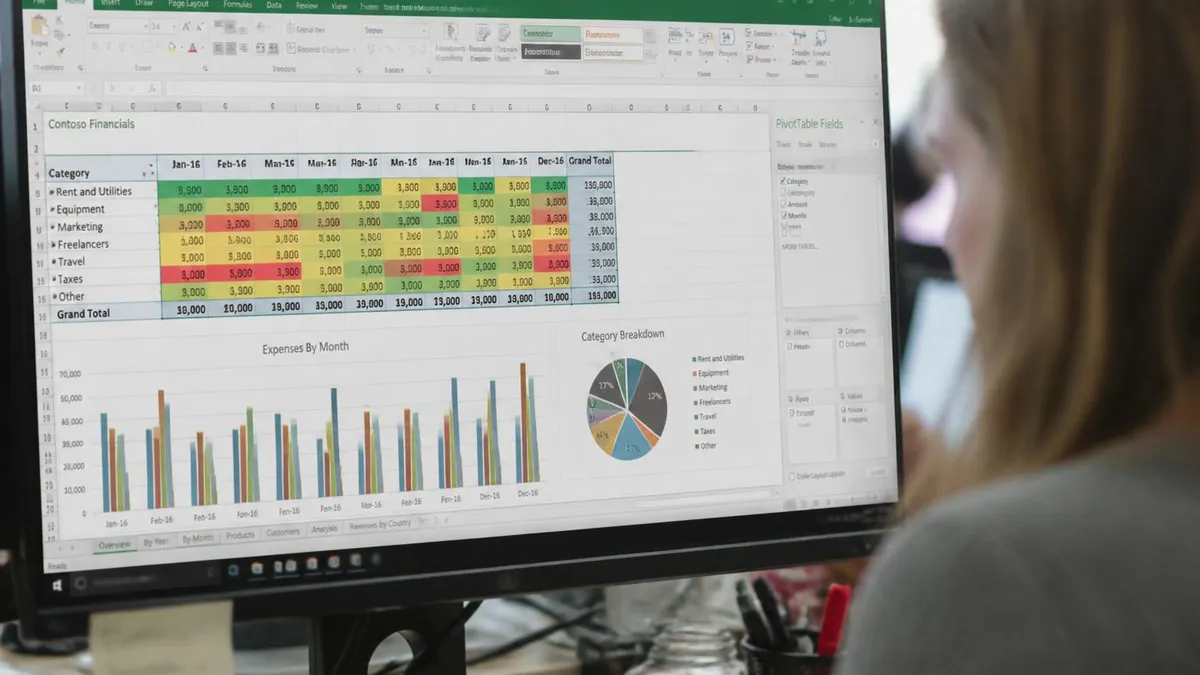
Google Sheets vs Excel: Pros and Cons
- +Google Sheets is free — no subscription required for core features
- +Real-time collaboration with multiple editors simultaneously
- +Auto-saves to cloud — never lose work due to a crash or power failure
- +Accessible from any browser on any device without software installation
- +Google Apps Script enables powerful automation via JavaScript
- +Easy sharing with granular view, edit, and comment permission levels
- −Excel has far more powerful data analysis and modeling tools
- −Sheets struggles with very large datasets over 500,000 rows
- −VBA macros don't convert — automation needs to be rewritten in Apps Script
- −Some advanced Excel chart types and pivot features don't transfer cleanly
- −Offline Sheets access is more limited compared to native Excel desktop
- −Excel integrates more deeply with Power BI, Azure, and Microsoft 365 ecosystem
If you need to know how to convert excel spreadsheet to google sheets for an entire team, the best approach is a shared Google Drive folder with auto-convert enabled. Your team uploads Excel files to that folder, they automatically become Sheets, and everyone collaborates from the same converted version. This eliminates the fragmentation problem where half the team uses Excel and half uses Sheets — everyone ends up in the same environment without needing manual conversion steps each time a new file arrives.
The phrase excel sheet google captures how many people search for this capability — they know both product names but aren't sure which platform is technically doing what. The short answer: Google Sheets is the web-based app, Excel is the Microsoft desktop/cloud app, and both can read .xlsx files. When you "open an excel sheet in google," you're using Google Sheets to read a file created in Excel's format. The data is identical — only the application rendering it has changed from one ecosystem to another.
For teams using Google Workspace for Business, there's an additional option: Chromebook-native Excel viewing through Microsoft 365 Apps, which lets users open .xlsx files in a web version of Excel directly from Drive. This hybrid approach means you don't have to convert at all — you just open the Excel file in its native application even from within the Google ecosystem. It's increasingly common in enterprise environments that run both Microsoft and Google tools side by side.
10-Step Excel to Google Sheets Conversion Checklist
- ✓Back up the original .xlsx file before starting any conversion
- ✓Upload the file to Google Drive using drag-and-drop
- ✓Right-click the uploaded file and choose 'Open with Google Sheets'
- ✓Go to File > Save as Google Sheets to create a permanent native copy
- ✓Review all formulas — check that VLOOKUP and INDEX/MATCH still work correctly
- ✓Check all charts — rebuild any that render incorrectly in Sheets
- ✓Verify conditional formatting rules transferred as expected across all cells
- ✓Test any data validation rules — dropdowns and input restrictions should transfer
- ✓Recreate any VBA macros using Google Apps Script if automation is needed
- ✓Share the converted Sheet with collaborators and set appropriate access permissions
Going the other direction — how to open google sheets in excel — is equally straightforward. From any Google Sheet, go to File > Download > Microsoft Excel (.xlsx). The file downloads immediately to your computer in Excel format. You can then open it in Excel desktop, attach it to an email, or share it with anyone who uses Microsoft Office. This is the most reliable way to get a Sheets file into Excel without losing data or formatting integrity.
The convert google sheets to excel process preserves most of your data and formulas accurately. Standard formulas written in Sheets — which use the same syntax as Excel for most functions — translate cleanly into .xlsx format. Google Sheets-specific functions like GOOGLEFINANCE, IMPORTDATA, or IMPORTRANGE don't have Excel equivalents and get converted to their last calculated static values during export. For cells using those functions, the exported Excel file will show the last value rather than a live formula.
If you use Google Sheets' collaboration features heavily — comment threads, version history, assigned action items — those don't export to Excel at all. Only the data and formatting come through. That's fine for most use cases, but if you need to preserve collaborative context (like comment threads for a client review), consider exporting a PDF alongside the .xlsx file so commentary isn't silently dropped during the format conversion process.
The question of how to convert google sheets to excel comes up frequently when collaborating with external partners or clients who don't use Google Workspace. The download-as-xlsx approach works perfectly for one-off exports. For ongoing collaboration where the file gets updated regularly, consider a recurring workflow: maintain the master version in Google Sheets, then export to Excel whenever you need to share a snapshot. This keeps your live collaboration in Sheets while ensuring Excel users always have access to a current copy without waiting for you to manually resend.
On the flip side, how to open excel file in google sheets is something teams need when receiving files from clients or partners who use Office. The simplest quick method: attach the .xlsx to a Gmail message and click the preview — Google renders it in a Sheets-like viewer automatically. From there you can click "Open in Sheets" to get a fully editable version. This works for files up to 5MB; for larger files, upload directly to Drive and convert through the normal Drive process instead.
One advanced scenario worth knowing: embedding a Google Sheet in a website or dashboard. You can do this even if the original data came from Excel — convert to Sheets first, then use Sheets' Publish to Web feature to get an embed link. The embedded sheet updates live whenever the source Sheet is edited, making it a powerful lightweight alternative to dedicated dashboard tools for teams that already live in Google Workspace and don't need a separate analytics platform.
VBA macros, Power Query connections, Power Pivot models, external data connections, and custom XML data structures don't convert when moving from Excel to Google Sheets. If your workbook relies on any of these, audit the file before converting — map which features are critical, decide which to rebuild in Sheets, and document which will be unavailable in the Google environment. Always run a test conversion on a copy first rather than converting your working file directly to avoid losing critical functionality without a recovery path.
For users working with convert excel to google sheet workflows regularly, it's worth learning Google Sheets' IMPORTRANGE function. Once you've converted a file, IMPORTRANGE lets you pull data from one Sheet into another dynamically — similar to how Excel's Power Query connects to external workbooks. This is particularly useful for dashboard builds where you want to consolidate data from multiple source sheets into a single reporting view without manually copying data around every time something updates.
The ability to open excel in google sheets without a full conversion is also available in Microsoft 365's browser-based Excel. If you upload a .xlsx to Google Drive and your organization has Microsoft 365, you can open it directly in web Excel via Drive integration — preserving all Excel-native functionality including macros and Power Query connections. This hybrid workflow is increasingly common in organizations that use both platforms and don't want to force conversion for complex analytical workbooks.
Understanding both conversion directions — Excel to Sheets and Sheets to Excel — gives you flexibility regardless of what format a collaborator sends you. You're never locked into one platform, which is the most practical mindset for modern spreadsheet work where teams use different tools across different contexts every day of the week. Master the conversion workflow once and it becomes second nature.
Microsoft Excel Practice Test Questions
Prepare for the Microsoft Excel exam with our free practice test modules. Each quiz covers key topics to help you pass on your first try.
Microsoft Excel Excel Basic and Advance
Microsoft Excel Exam Questions covering Excel Basic and Advance. Master Microsoft Excel Test concepts for certification prep.
Microsoft Excel Excel Formulas
Free Microsoft Excel Practice Test featuring Excel Formulas. Improve your Microsoft Excel Exam score with mock test prep.
Microsoft Excel Excel Functions
Microsoft Excel Mock Exam on Excel Functions. Microsoft Excel Study Guide questions to pass on your first try.
Microsoft Excel Excel MCQ
Microsoft Excel Test Prep for Excel MCQ. Practice Microsoft Excel Quiz questions and boost your score.
Microsoft Excel Excel
Microsoft Excel Questions and Answers on Excel. Free Microsoft Excel practice for exam readiness.
Microsoft Excel Excel Trivia
Microsoft Excel Mock Test covering Excel Trivia. Online Microsoft Excel Test practice with instant feedback.
Microsoft Excel Advanced Data Analysis Tools
Free Microsoft Excel Quiz on Advanced Data Analysis Tools. Microsoft Excel Exam prep questions with detailed explanations.
Microsoft Excel Advanced Formula and Macro...
Microsoft Excel Practice Questions for Advanced Formula and Macro Creation. Build confidence for your Microsoft Excel certification exam.
Microsoft Excel Advanced Formulas and Macros
Microsoft Excel Test Online for Advanced Formulas and Macros. Free practice with instant results and feedback.
Microsoft Excel Basic and Advance Question...
Microsoft Excel Study Material on Basic and Advance Questions and Answers. Prepare effectively with real exam-style questions.
Microsoft Excel Creating and Managing Charts
Free Microsoft Excel Test covering Creating and Managing Charts. Practice and track your Microsoft Excel exam readiness.
Microsoft Excel Data Visualization with Ch...
Microsoft Excel Exam Questions covering Data Visualization with Charts. Master Microsoft Excel Test concepts for certification prep.
Microsoft Excel Formulas and Functions
Free Microsoft Excel Practice Test featuring Formulas and Functions. Improve your Microsoft Excel Exam score with mock test prep.
Microsoft Excel Formulas and Functions App...
Microsoft Excel Mock Exam on Formulas and Functions Application. Microsoft Excel Study Guide questions to pass on your first try.
Microsoft Excel Formulas Questions and Ans...
Microsoft Excel Test Prep for Formulas Questions and Answers. Practice Microsoft Excel Quiz questions and boost your score.
Microsoft Excel Functions Questions and An...
Microsoft Excel Questions and Answers on Functions Questions and Answers. Free Microsoft Excel practice for exam readiness.
Microsoft Excel Managing Data Cells and Ra...
Microsoft Excel Mock Test covering Managing Data Cells and Ranges. Online Microsoft Excel Test practice with instant feedback.
Microsoft Excel Managing Tables and Data
Free Microsoft Excel Quiz on Managing Tables and Data. Microsoft Excel Exam prep questions with detailed explanations.
Microsoft Excel Managing Tables and Table ...
Microsoft Excel Practice Questions for Managing Tables and Table Data. Build confidence for your Microsoft Excel certification exam.
Microsoft Excel Managing Worksheets and Wo...
Microsoft Excel Test Online for Managing Worksheets and Workbooks. Free practice with instant results and feedback.
Microsoft Excel MCQ Questions and Answers
Microsoft Excel Study Material on MCQ Questions and Answers. Prepare effectively with real exam-style questions.
Microsoft Excel Questions and Answers
Free Microsoft Excel Test covering Questions and Answers. Practice and track your Microsoft Excel exam readiness.
One frequently searched topic alongside google excel conversions is export google calendar to excel. You can export your Google Calendar as a .ics file, then use a converter tool or Excel's import wizard to structure the data in a spreadsheet. There are also Google Apps Script solutions that pull calendar events directly into a Sheet, which you can then export to Excel format. It's a multi-step process but very workable for anyone who needs calendar data in a spreadsheet for project reporting, time tracking, or analysis purposes.
Similarly, people ask about how to convert a google sheet to excel when they need to submit deliverables in Office format to a client or manager. The answer is always File > Download > Microsoft Excel (.xlsx). The resulting file opens perfectly in Excel 2013 and later versions. For clients still on very old Excel versions (2007 or earlier), you may need to save as .xls instead — though this is increasingly rare given how long those versions have been out of mainstream support and active use in most organizations.
The broader takeaway: both Excel and Google Sheets are excellent tools, and knowing how to move between them confidently removes a major source of friction from collaborative work. Whether you're a solo professional managing data in Sheets, or part of an enterprise team that uses both platforms across departments, mastering these conversion workflows pays dividends every single time a new file lands in your inbox in the wrong format. Don't let the platform be the bottleneck — let the data do the work instead.
Excel Questions and Answers

PDF to Excel: How to Convert, Insert, and Save Excel Files as PDF

Excel Online: Open, Edit, and Master Spreadsheets Free in 2026

Excel Spreadsheet Guide: Create, Protect, Print, and Master Excel

Excel Skills Guide: Formulas, Functions, and Spreadsheet Mastery

Microsoft Excel: Formulas, Functions, Certifications, and Skills You Need in 2026
About the Author

Business Consultant & Professional Certification Advisor
Wharton School, University of PennsylvaniaKatherine Lee earned her MBA from the Wharton School at the University of Pennsylvania and holds CPA, PHR, and PMP certifications. With a background spanning corporate finance, human resources, and project management, she has coached professionals preparing for CPA, CMA, PHR/SPHR, PMP, and financial services licensing exams.